
Your printed edition,
made for the screen
Keep everything readers love about your newspaper or magazine, and give them more ways to enjoy it. Editions brings your pages to phones, tablets and the web, with adjustable text, interactive puzzles, archive search and full-screen advertising.
Request a demo
Easy to browse.
Easy to settle into
Swipe to turn the page, double-tap to zoom in to print size, or swipe down to browse the whole issue at a glance.
More than 15 years of refinement make these gestures feel familiar from the first page.
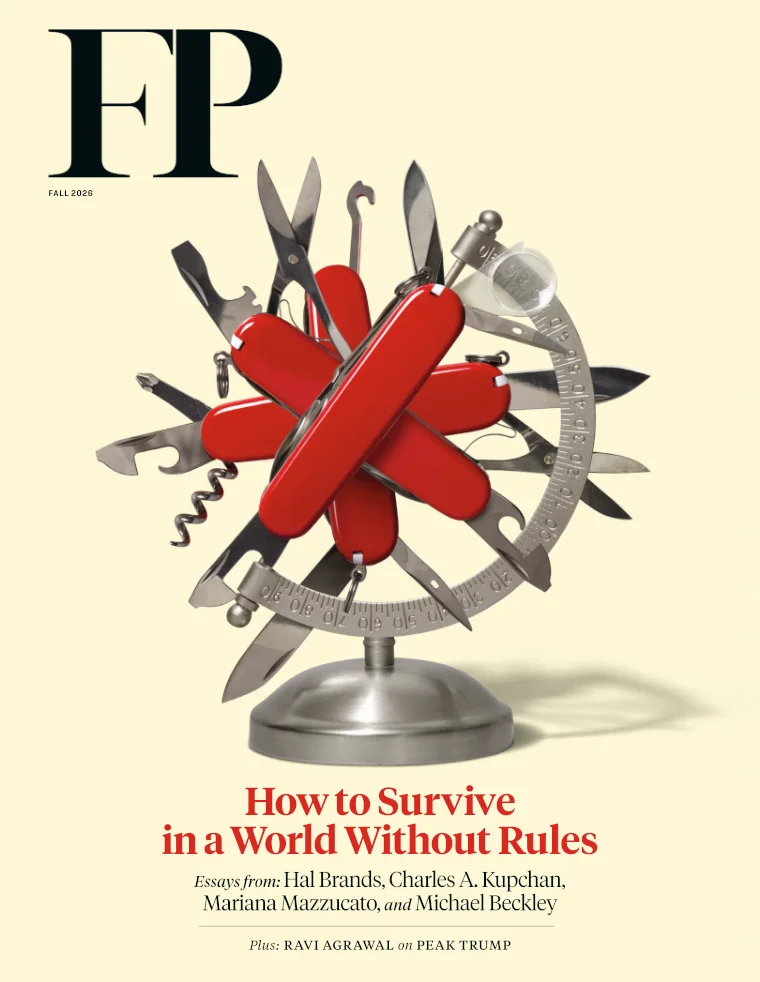

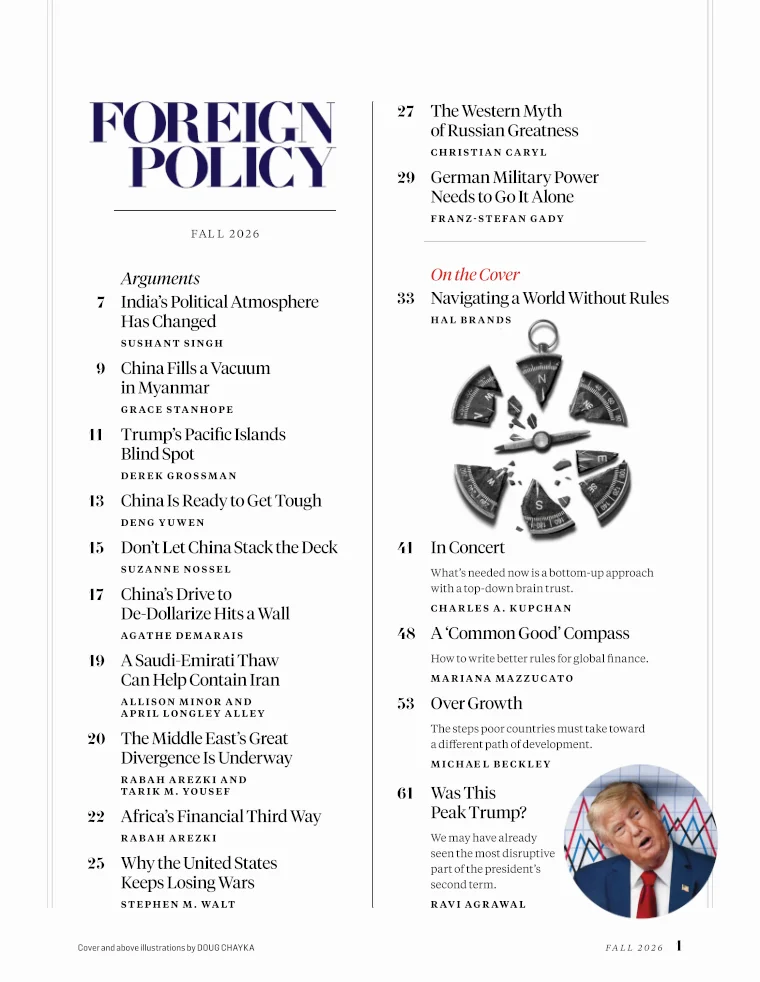
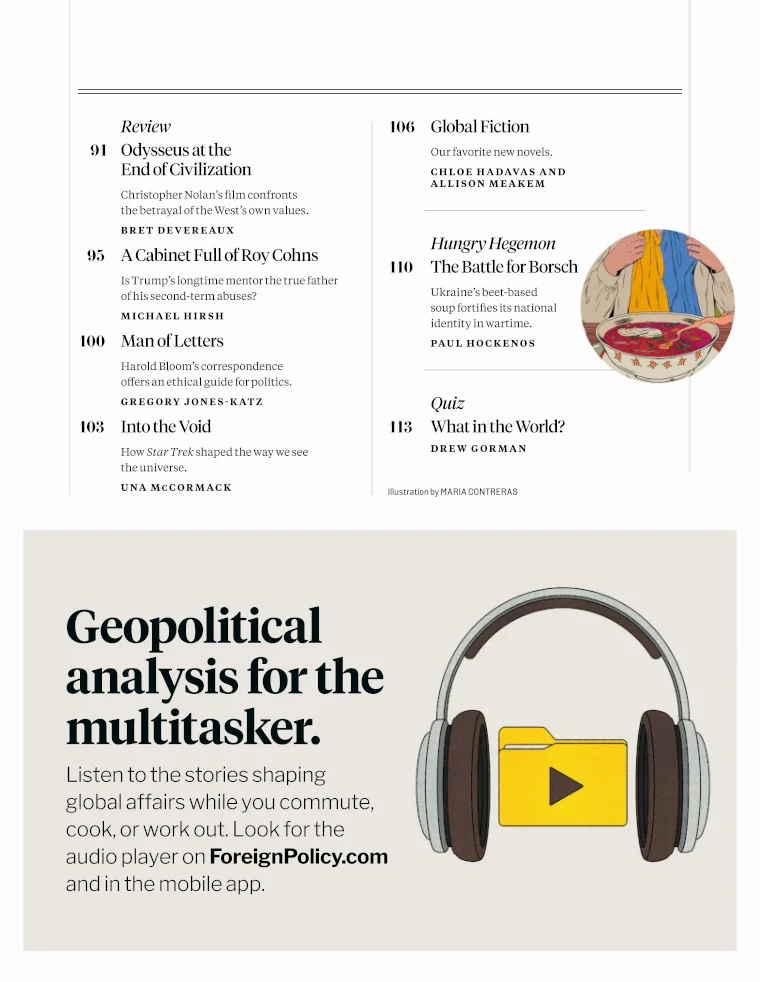

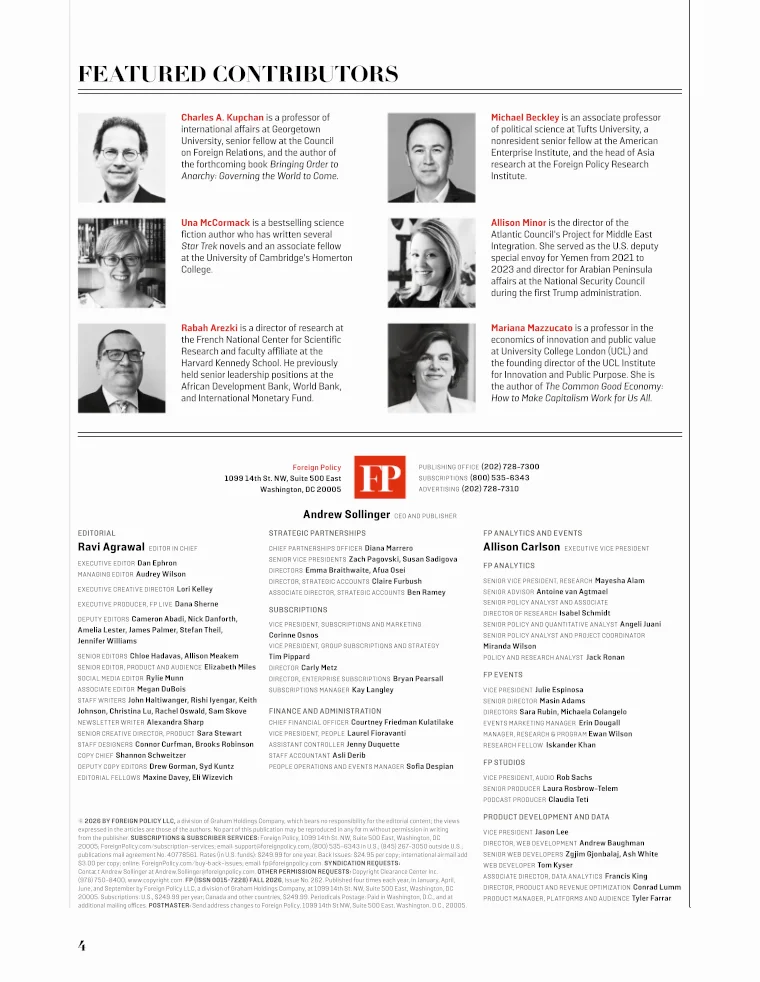
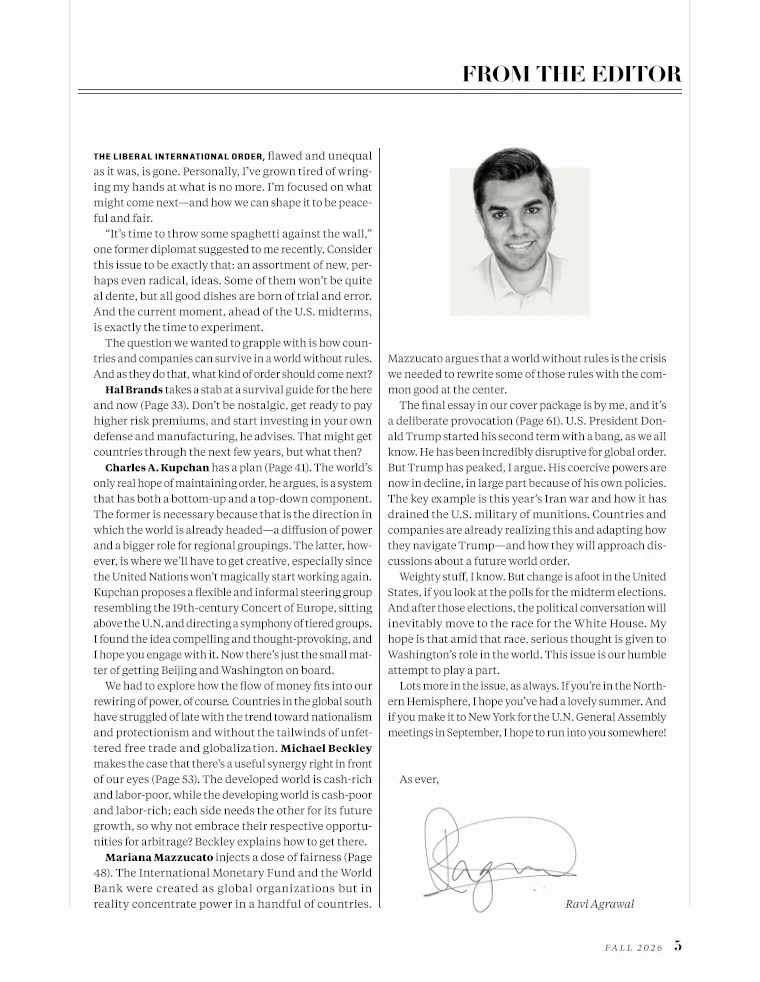

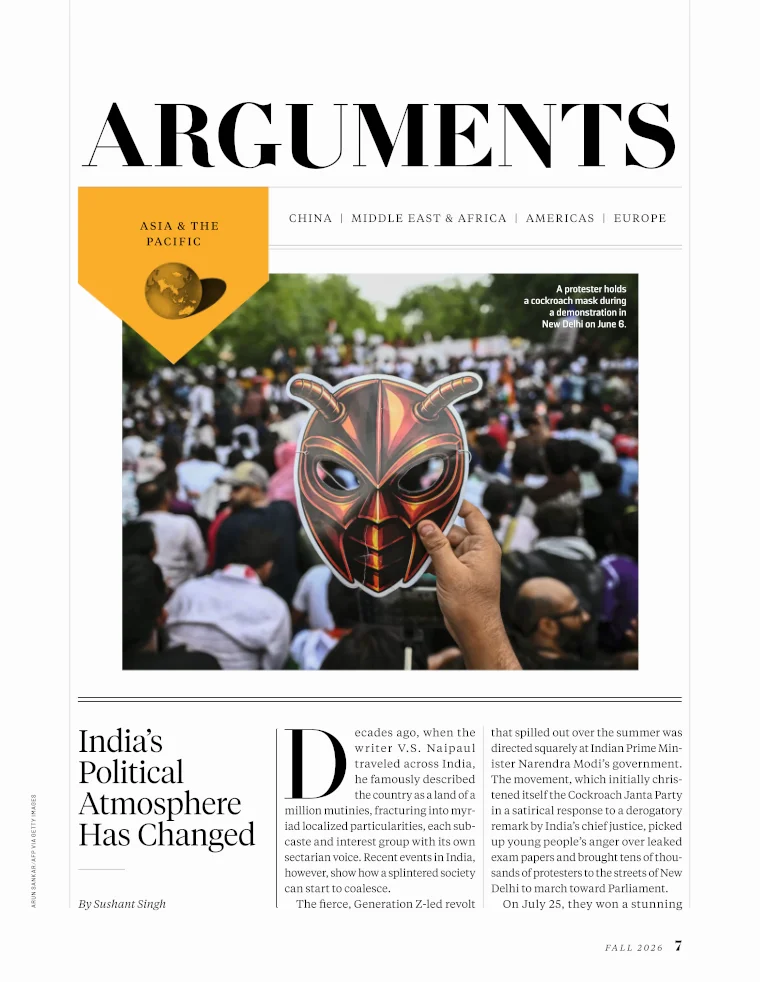
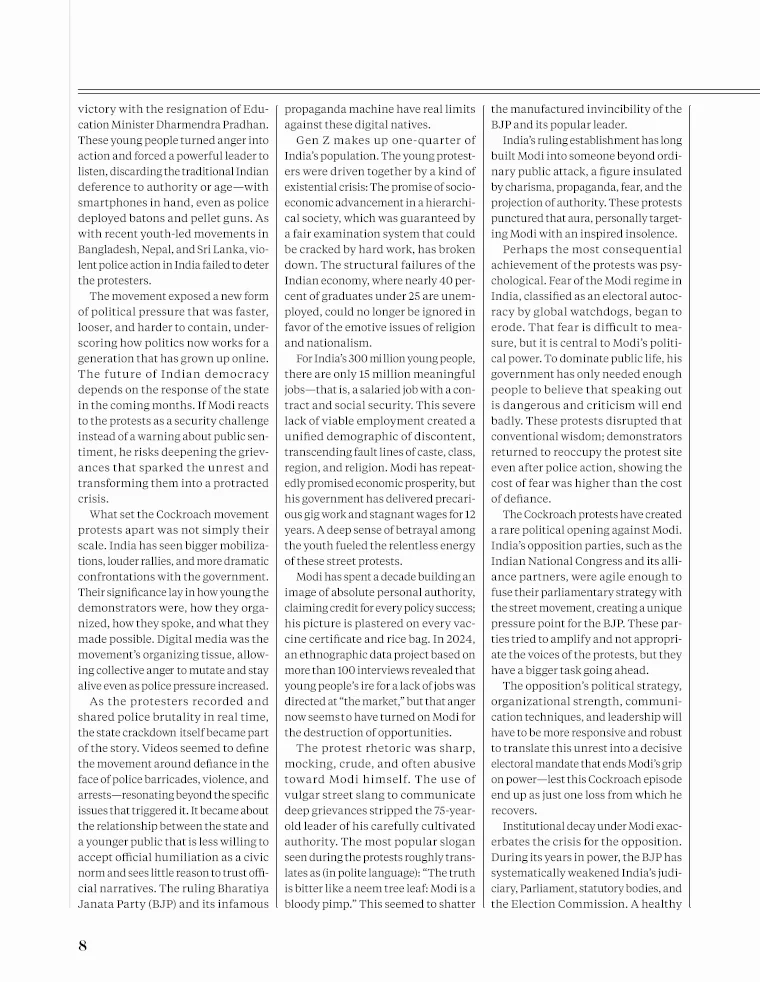
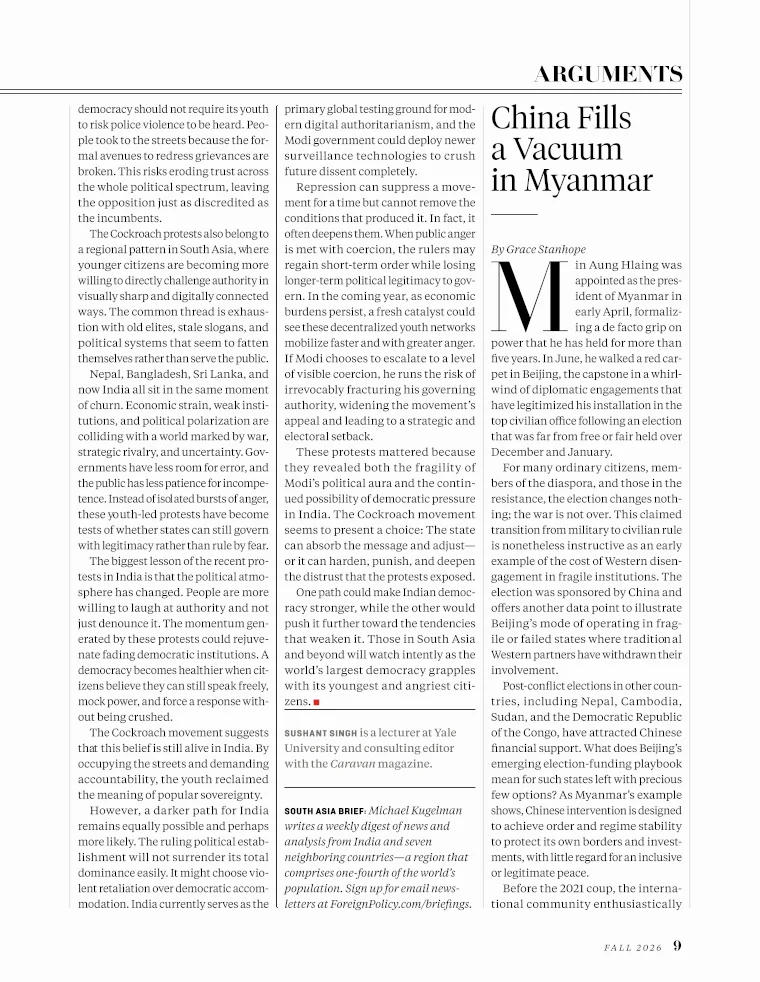
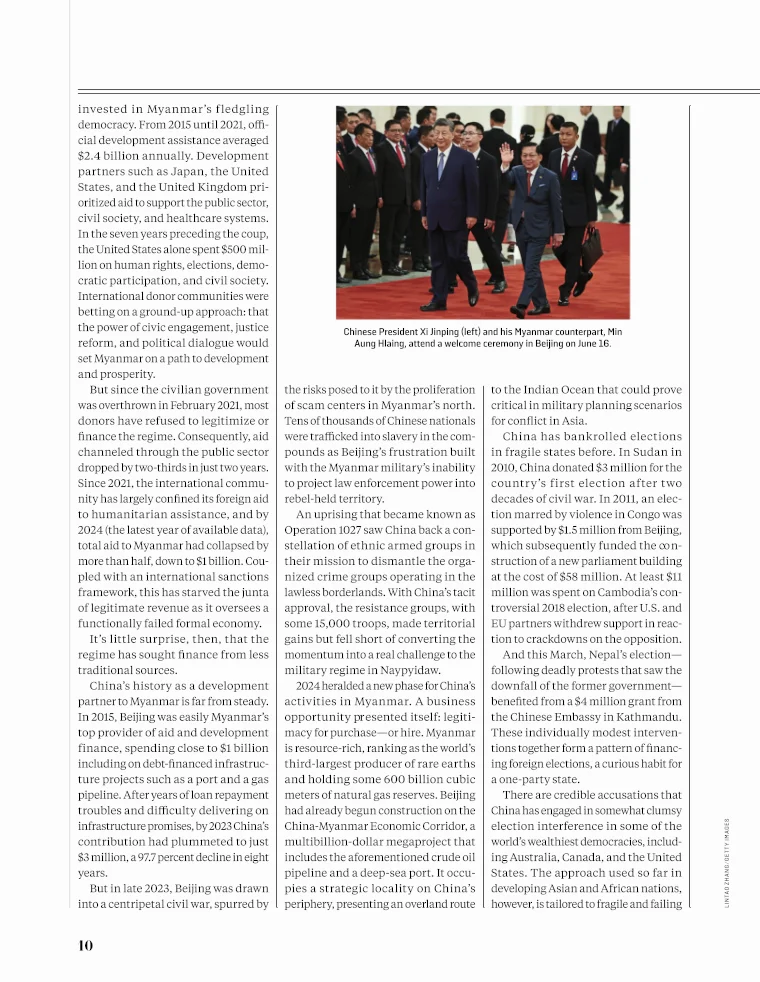
-
Swipe to turn the page
The page tracks your finger as you swipe.
-
Double-tap to read at print size
Text appears at its printed size, or larger if you’ve increased the text size in your device settings. Double-tap again to see the whole page.
-
Pinch to zoom
Zoom in for a closer look, then drag to move around the page. Text stays sharp at every size.
-
Find your next read at a glance
From the full-page view, swipe down or pinch in to see all the spreads. Tap a page to open it.
-
Swipe past ads to keep reading
Full-screen ads appear between spreads. Scroll vertically inside a multi-page ad, then swipe sideways to continue reading.
Adaptive reading mode
Small screen?
Make yourself comfortable
Let readers switch from the printed page to a single column that fits their screen and preferred text size.
The text, pictures and typefaces come straight from your final PDF, so each article matches the printed edition word for word.
-
A column that fits the screen
Lines adapt to the available width. Even on a wide screen, the column stays comfortable to read.
-
The reader chooses the text size
Change the text size without losing your place.
-
One continuous article
Text flows from one paragraph to the next, even when it spans several columns or pages in print. Pictures and captions stay with the article.
-
One article at a time
Focus on the article you’ve chosen, even when it shares a page with another story. Return to the page whenever you want to keep browsing.
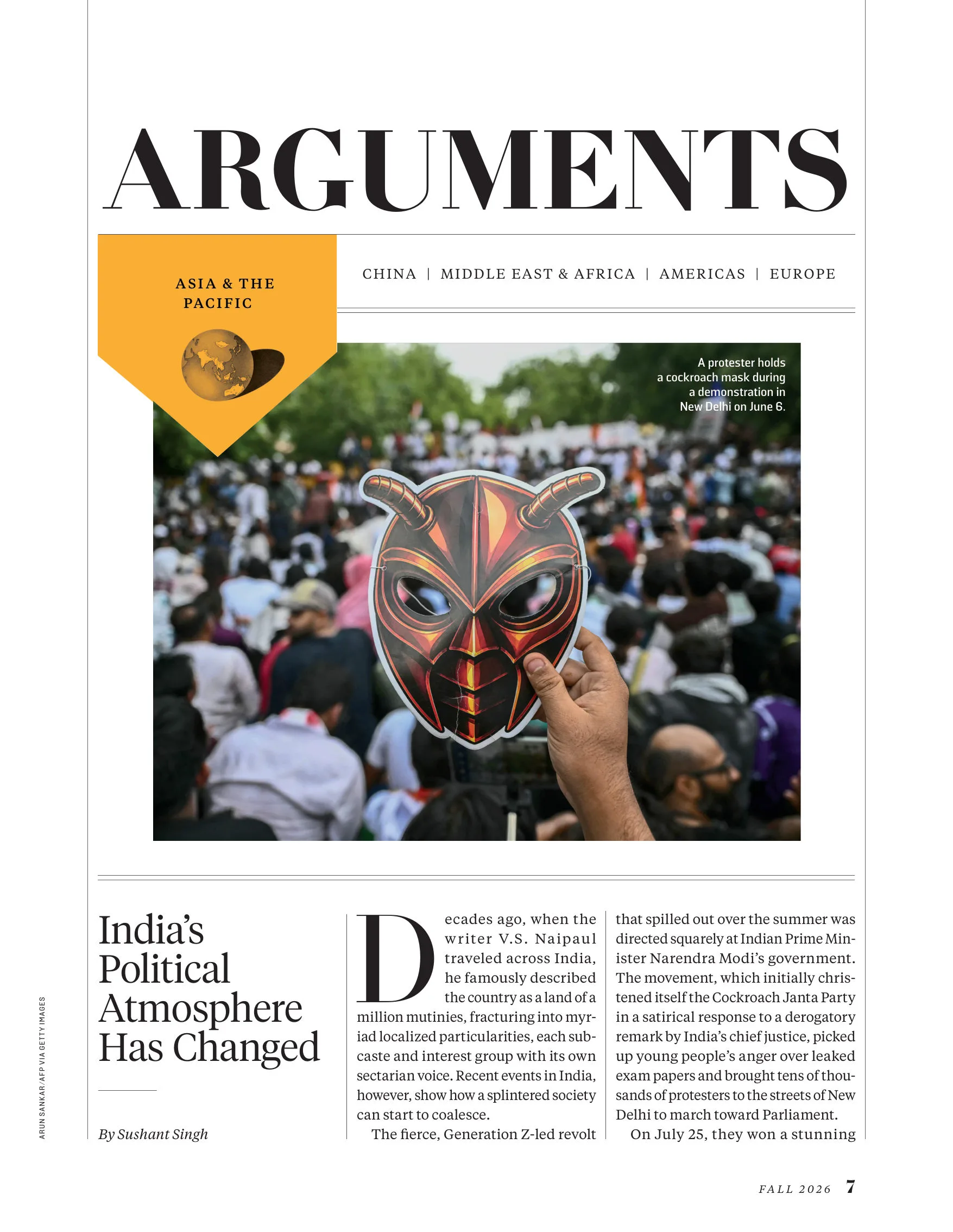
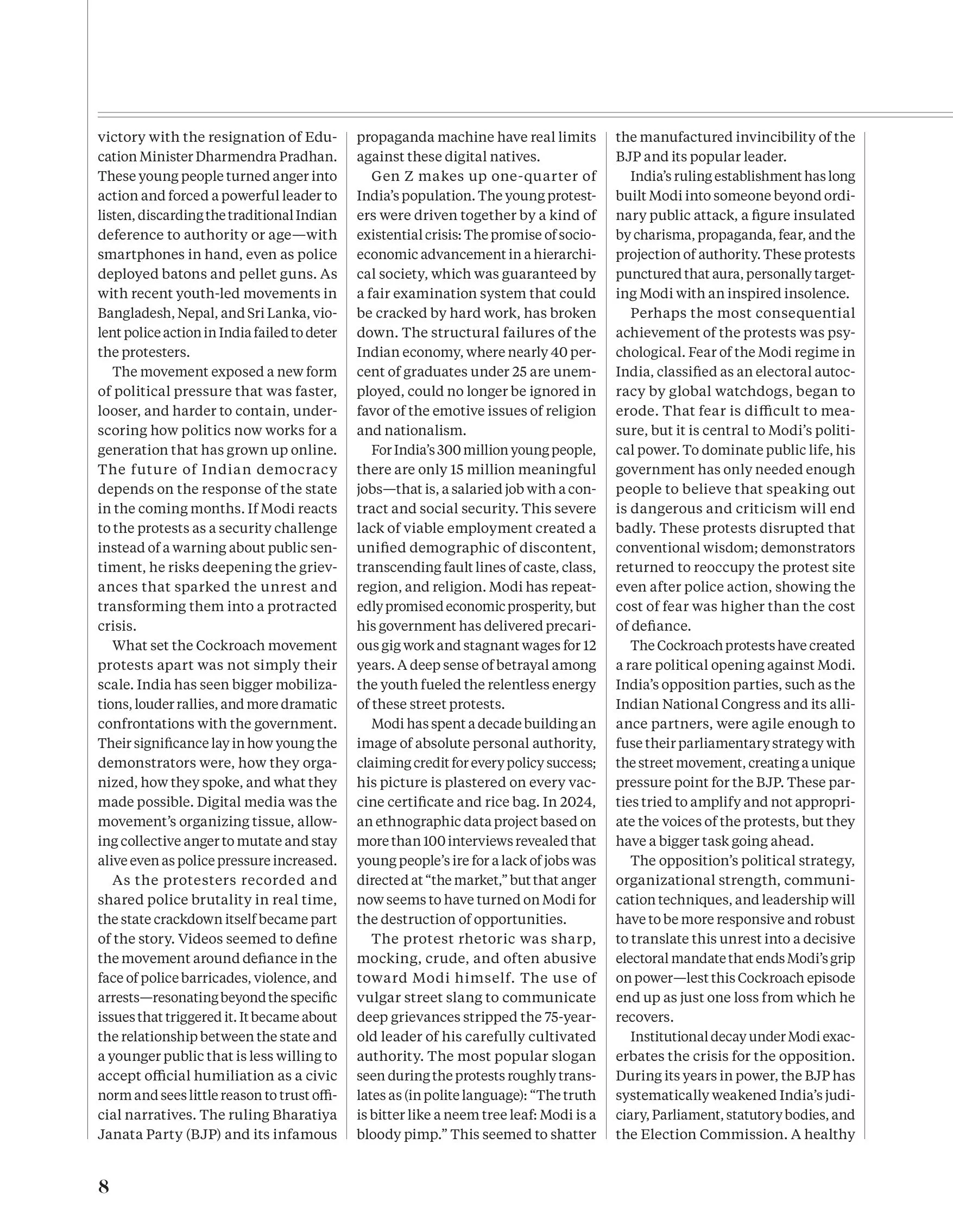
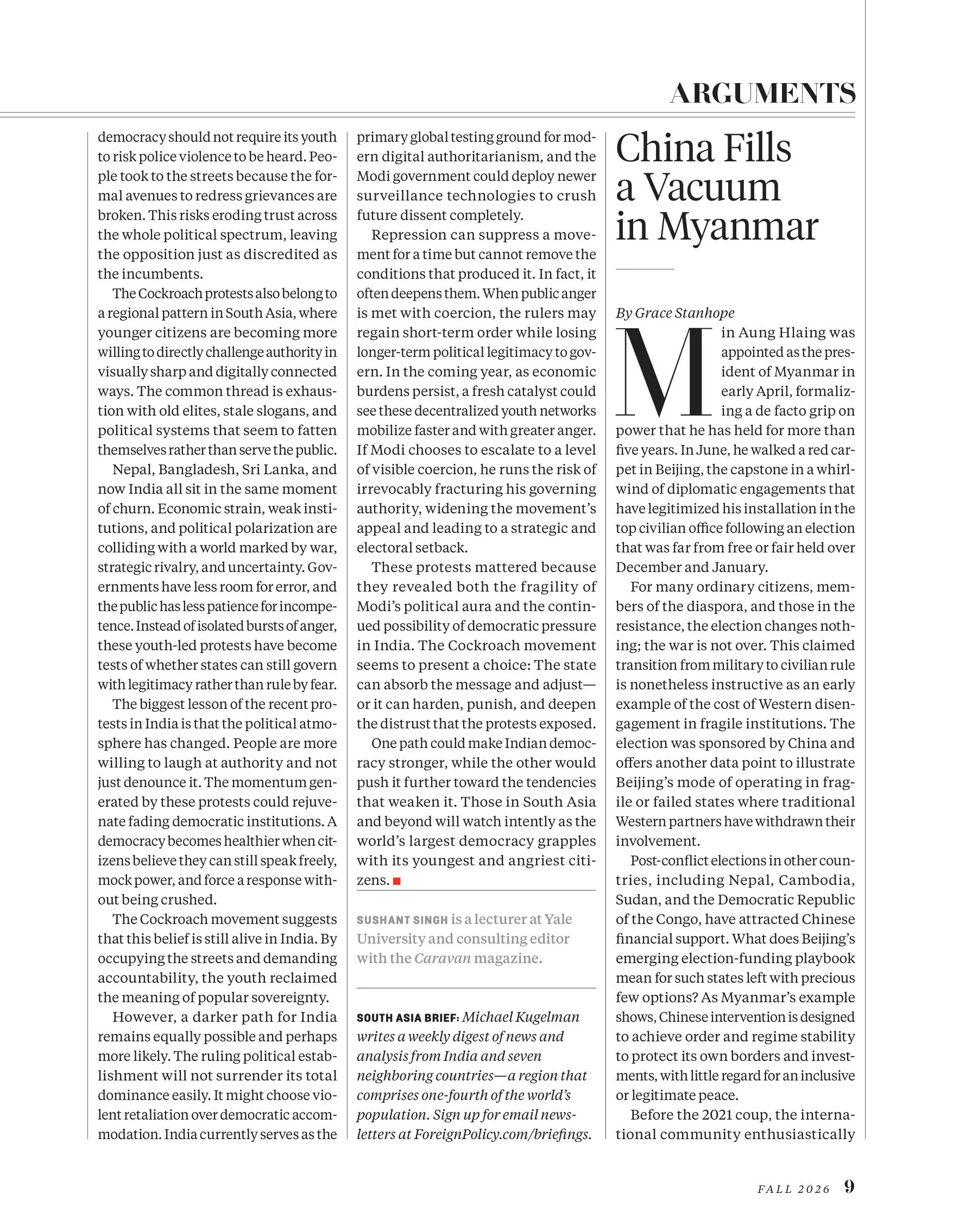
Loading reading mode…
Checked before publication
Automated checks verify the content and layout of every article before it becomes available in reading mode. Articles that don’t pass remain available on the original page.
- 01
Extract
Extract the type, images and page information from the PDF.
- 02
Structure
Identify and assemble the text and images that belong to the article.
- 03
Design
Create a layout plan for a single-column reading view.
- 04
Render
Fit the validated article to the reader’s screen.
Type that stays sharp
as you zoom
Editions processes your PDFs before publication, so the reader’s device can display each page with its original layout intact.
Prepared once, ready for every reader
We separate the PDF into text, photographs and graphics, then store each in the format best suited to it.
The device downloads the processed content and assembles the page. We use the same renderer on iOS, Android and the web to keep pages consistent across platforms.

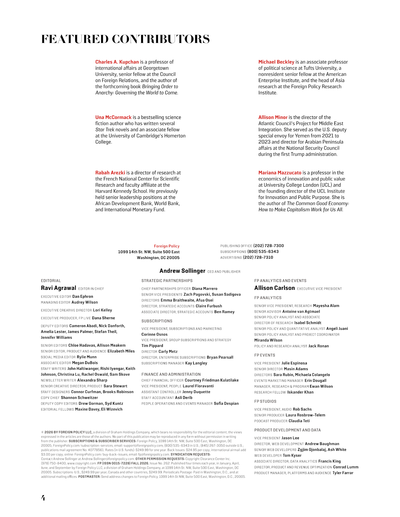
Redrawn at the new size
As the reader zooms, Editions redraws the letters at the new size from their original shapes, positioning them to within 1/32 of a pixel.
Only the visible part of the page is drawn. Rendered letter shapes stay in memory to keep zooming smooth.

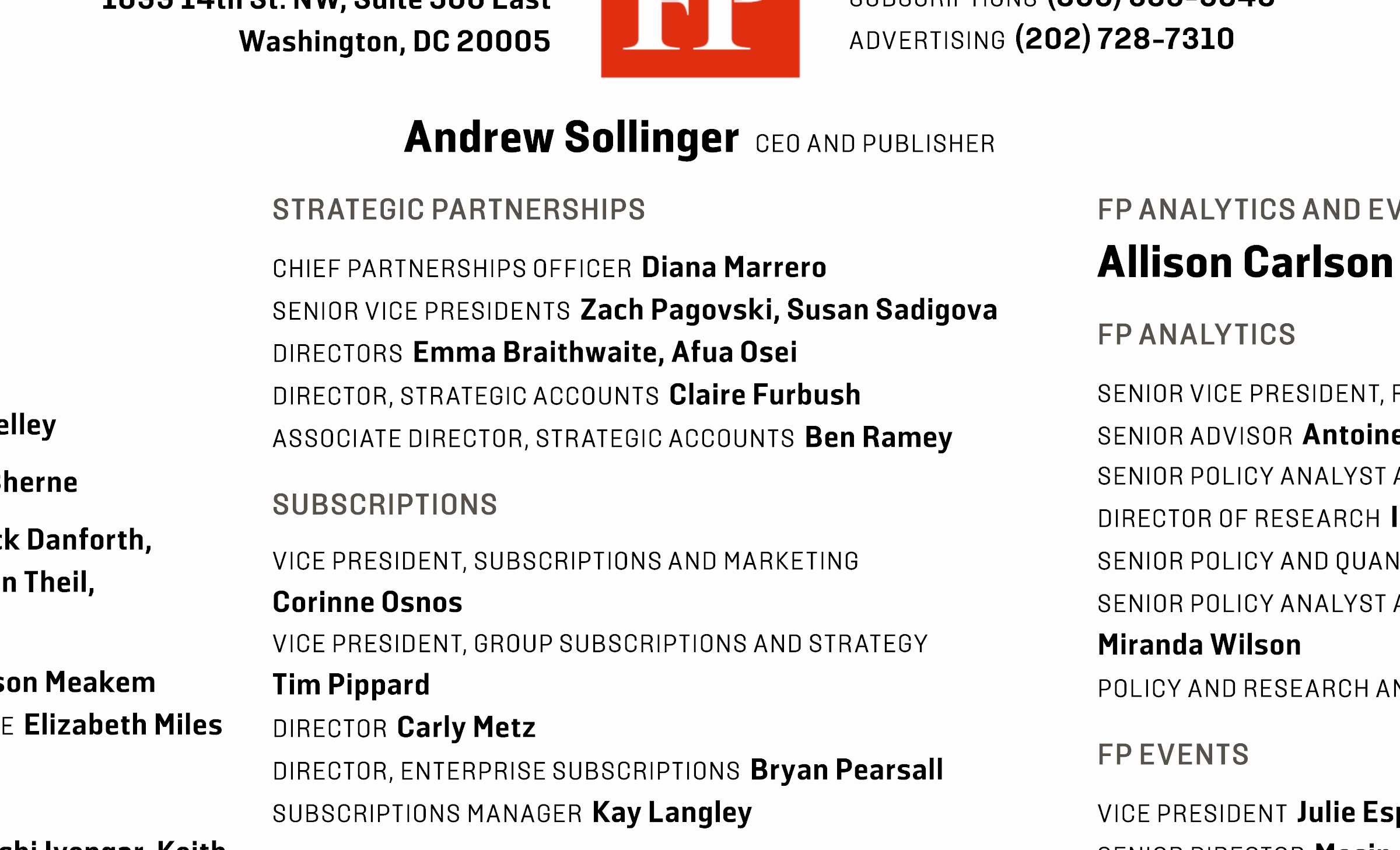

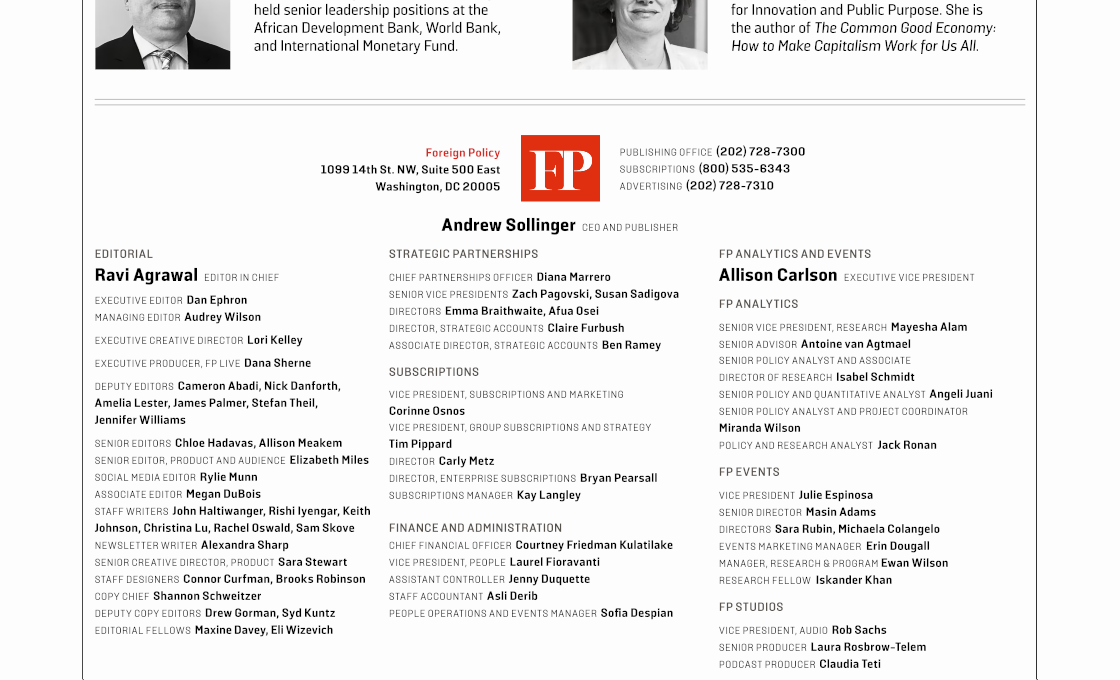
Keep the character of your type
A letter’s edge rarely falls exactly on a pixel boundary. Editions calculates the edge pixels from the precise shape, using 1–32× supersampling and 256 levels of coverage.
Gamma correction accounts for the way screens display brightness when blending type with its background. Without it, edges darken and the text looks heavier than it should.


 Gamma-corrected
 Uncorrected
Actual size. Without correction, the same text looks darker and heavier.
Step back from the stripes. A surface that is half black and half white looks like the gamma-corrected grey, rather than the simple average of the colour values.
The daily puzzle
comes with you
Give readers the same crosswords and sudoku they enjoy in print, ready to solve on screen.
Editions detects the grid and fillable cells directly from your PDF. For crosswords, it also identifies where each answer starts and ends. Your team doesn’t have to recreate a thing.
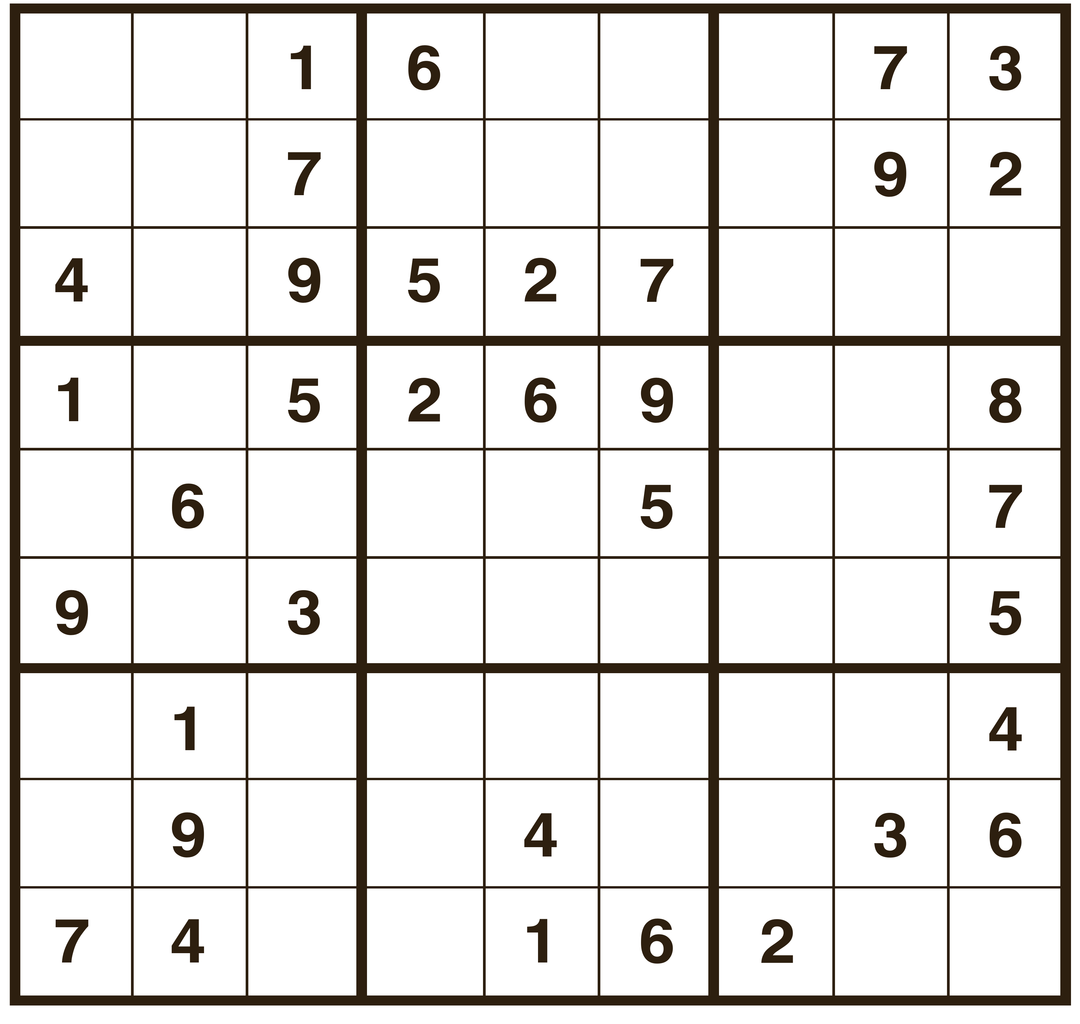
Tap a cell and type
Your answer appears in the original grid. In the apps, selecting a sudoku cell brings up a numeric keyboard.
Crosswords keep their original clues
Tap to select a cell and its word. Tap again to switch direction. As you type, the selection moves to the next cell.
Pick up where you left off
Your answers are saved on your device. This demo saves them in your browser too.
Richie Ads
Give advertisers
the whole screen
Create space for image, video and rich media campaigns in addition to the ads already on your printed pages.
Richie Ads appear between spreads. Readers swipe past them just as they turn a page.
- campaigns
- 40,000+
- of impressions
- billions
A natural part of the edition
There’s nothing to dismiss before opening an article: readers simply swipe to continue. Readers respond more positively to this format than to other display advertising.
Let the creative do the work
With the screen to itself, an ad can make its point with simple, understated creative.
100% viewability
Each ad fills the screen when shown, delivering 100% measured viewability.
Place ads by section
Place an ad at the beginning or end of a section, such as before world news or after its final spread.
Ads are managed separately from the edition. In apps that support dynamic placements, you can change them without reprocessing the issue.
Ready before the page turns
Ads download in advance, ready to display even when the reader is offline.
The device records impressions and interactions offline, then sends them for reporting when it reconnects.
Impressions, clicks and interactions
Reports cover impressions, clicks and interactions within the ad. An API lets you bring the results into your own systems.
Advertising and measurement do not require reader profiling.
Give old stories a new audience
Make your back issues easy to explore with full-text search. They can filter by date and open each result on the original page, complete with photographs and ads.
Publishers use our archive technology to make more than 150 years of journalism searchable. This example shows real search results across more than 900,000 pages of Helsingin Sanomat and its predecessor, Päivälehti.
906,502 pages, 1889–1997. Source: HS Aikakone, Finland.
Titanic appears on 886 pages.
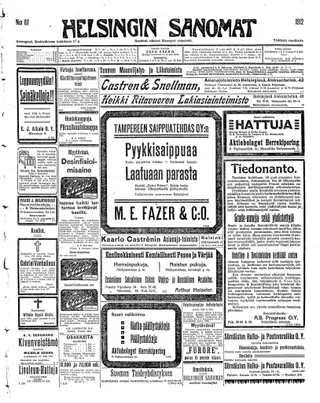
17 April 1912
Titanic has sunk after colliding with an iceberg. 675 passengers and the crew have been taken aboard the Cunard steamship Carpathia, which is continuing to New York.
Translated from Finnish
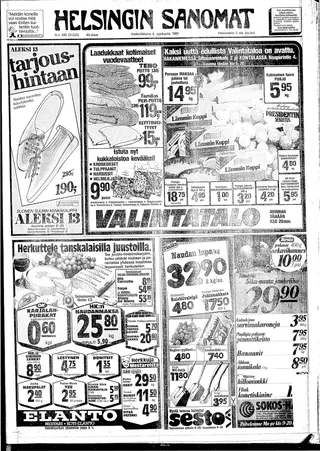
4 September 1985
…The legendary Titanic. The giant that struck an iceberg on her maiden voyage lies in the depths. The wreck of the passenger liner Titanic was found on the seabed over the weekend…
Translated from Finnish

28 December 1997
…the musical Titanic at the Lunt-Fontanne Theatre on 46th Street. Titanic is once again the ship of the year, at least in the entertainment world. James Cameron’s…
Translated from Finnish
Keep the original context
A result opens on the newspaper page, with the match highlighted. Readers can explore what else was being reported at the time.
Find a story you remember
Search individual words or exact phrases and narrow the date range. Karjalainen’s Kaiku archive reaches back to 1874; HS Aikakone gives readers access to past issues of Helsingin Sanomat and Päivälehti.
You send the PDFs.
We’ll take it from there
Deliver your PDFs over SFTP. Editions prepares the pages and publishes the issue automatically at the agreed time.
Need to make a change? Your team can reorder pages, upload corrections and edit the table of contents in our browser-based publishing tools.

Send pages over SFTP
- Send the whole issue or one page at a time; resending a page replaces it
- Issue dates and page numbers are read from filenames
- Import section information from your editorial system’s page plan, where supported
- Publish at the agreed time, including the evening before the issue date
- Choose who receives email alerts if a transfer fails
Manage issues in your browser
- Drag pages to reorder them
- Drop a new or corrected PDF page into place
- Edit article titles and the table of contents
- Share a preview link before publication
- Set each user’s access level: viewer, editor or administrator
- 01
Receive
PDF pages arrive over SFTP or through the publishing tools. Processing begins once the upload is complete.
- 02
Prepare
Editions prepares text, photographs and graphics for the screen. If enabled, it also indexes the text for archive search and detects puzzles using computer vision.
- 03
Distribute
Richie’s own delivery network distributes the prepared issue to readers in Europe and North America.
- 04
Publish
The issue becomes available in apps and on the web at the agreed publication time. Readers can download it in the app to read offline.
Add Editions to
your app or website
Use our reader in the app or website you already have, or ask us to build an app for your publication.
In your existing app
Add the edition reader with our iOS and Android SDKs. Your existing subscriber services handle sign-in and content access.
SDK documentationOn the web
Let readers browse current issues and archives in their browser, with links that open a specific issue or page.
In a Richie app
Bring editions, news and audio together in your publication’s own app.
Explore our apps